
Birthday AI Video: Star the Birthday Person in a Trend or Your Own Clip
One photo of the birthday person, a funny clip, and they are the star: the friend who insists on paying, the guest on the red carpet, the dog at the dinner table. Ideas, the right photo, the free editor for the birthday message, the cost and the rules.
Add one photo of the birthday person, with their OK. The clip costs 12 credits at 480p or 24 at 720p.
Make a Dinner’s On Me birthday video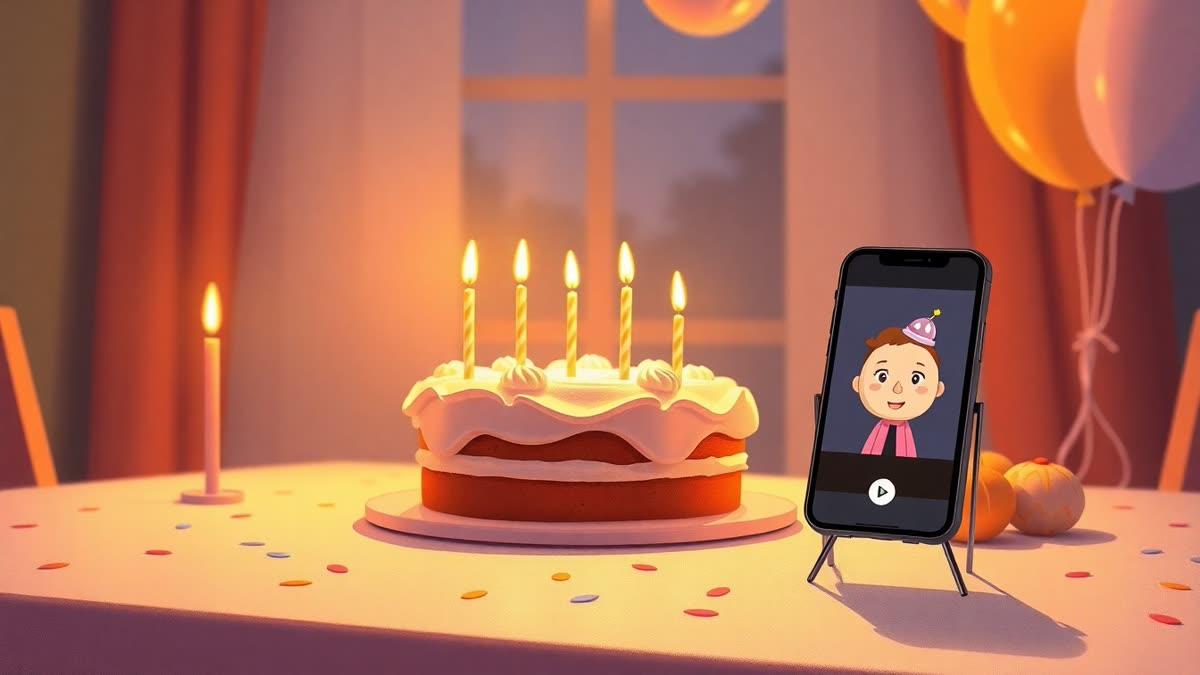
Try it while you read
Add one photo of the birthday person, with their OK. The clip costs 12 credits at 480p or 24 at 720p.
Make a Dinner’s On Me birthday videoGet the mobile app


Only use photos of yourself or of people who have given permission. No real public figures without their permission, no sexual content and nothing made to deceive. Every result is AI-generated: share it as AI-generated. The rules
How do I make a birthday AI video?
To make a birthday AI video with ActLike AI (actlikeai.video), pick a ready-made trend such as Dinner’s On Me or upload your own clip, add one photo of the birthday person (with their permission) and render it. They take the lead role with the clip’s moves and sound. Dinner’s On Me uses 12 credits at 480p. Then add a “Happy birthday” text and join clips in the free browser editor.
On this page
What is a birthday AI video starring the birthday person?
A birthday AI video, the way ActLike AI makes it, is a short funny clip where the birthday person plays the lead. You do not animate a still photo or write a text prompt. You take a real video clip, a ready-made trend or something you filmed yourself, and one photo of the birthday person. The AI replaces the person in the clip with them, head to toe, while the clip keeps its moves, its camera, its background and its sound.
That is a different gift from a slideshow or a card with music. Your friend is not pasted on top of a scene; they are in it. If the man in the clip reaches for the bill at second two and pulls a sponge out of his wallet at second five, the birthday person does exactly that, wearing the clothes from their photo. It works well in a group chat on the morning of the birthday, on a screen at the party, or as the opener of a longer video that the whole group put together.
There are three parts, and only one of them costs credits:
- 1The clipA trend from the trends page, or your own MP4 or MOV filmed in one take.
- 2The photoOne clear photo of the birthday person, or of their dog or cat for the three trends that take a pet.
- 3The finishing touchA “Happy birthday” text, a trim, or several clips joined into one, in the free browser editor. This part is optional and costs nothing.
Which trends work for a birthday?
Every trend has one fixed role and its own sound, so each render takes one photo. Here is what each one costs and what kind of birthday it suits. Lengths are billed in whole seconds, rounded up, which is why they match the 480p credits.
| Trend | Role the birthday person plays | Length | Credits 480p | Credits 720p | Photo | Birthday use |
|---|---|---|---|---|---|---|
| Seaside Arrival | Role the birthday person plays: the man who steps out of the convertible | Length: 11 s | Credits 480p: 11 | Credits 720p: 22 | Photo: Person | Birthday use: The birthday arrival: stepping out of a convertible at night |
| Gentleman Move | Role the birthday person plays: the man who steps aside | Length: 9 s | Credits 480p: 9 | Credits 720p: 18 | Photo: Person, dog or cat | Birthday use: The polite one who lets everyone go first, even on their birthday |
| Road Trip Reunion | Role the birthday person plays: the driver who meets his old friend again | Length: 30 s | Credits 480p: 30 | Credits 720p: 60 | Photo: Person | Birthday use: A milestone birthday: meeting an old friend again on the road |
| Aura Farming | Role the birthday person plays: the calm guest working the room | Length: 19 s | Credits 480p: 19 | Credits 720p: 38 | Photo: Person | Birthday use: The guest of honor working the room like a red carpet |
| Dinner's On Me | Role the birthday person plays: the man who insists on paying | Length: 12 s | Credits 480p: 12 | Credits 720p: 24 | Photo: Person, dog or cat | Birthday use: The friend who always grabs the bill at the birthday dinner |
| Sushi Master | Role the birthday person plays: the sushi chef | Length: 11 s | Credits 480p: 11 | Credits 720p: 22 | Photo: Person, dog or cat | Birthday use: The birthday cook, deadpan with a giant cleaver |
Dinner’s On Me is the natural pick for a birthday dinner. A man at a fancy restaurant waves away his date’s card, opens his wallet with full confidence, finds a kitchen sponge instead of cash and gets led to the sink. Every friend group has someone who insists on paying, and this is their moment. It is 12 seconds, 12 credits at 480p, 24 at 720p or 36 at 1080p.
The longest trend, Road Trip Reunion, runs 30 seconds, so it costs more, but it tells a little story about old friends that fits a milestone birthday. Sushi Master is short and suits the friend who does all the cooking. New trends are added to the trends page as they are made, so check it before you film anything yourself.
Do you need a birthday AI video prompt?
No. Many people search for a birthday AI video prompt because most AI video tools start from text. ActLike AI does not: it always starts from a clip and a photo, so there is nothing to write and no prompt to get wrong. The clip decides what happens; the photo decides who it happens to. What you need instead is an idea. Here are six that work, each tied to a real trend or to a clip you can film in a few minutes.
- 1The birthday dinner billDinner’s On Me with the friend who always reaches for the bill. Send it to the group on the morning of the dinner with a caption like “Sam has insisted on paying tonight.”
- 2The red-carpet birthdayAura Farming puts the guest of honor at a packed gala, calm and cool in every shot. It suits a friend who likes a big entrance. Use a full-body photo.
- 3The arrivalSeaside Arrival has the birthday person step out of a red convertible by the sea at night and stroll off. Add the text “The birthday boy has arrived” and post it before the party.
- 4The old friends road tripRoad Trip Reunion for a 30th, 40th or 50th: the driver recognizes an old friend in the car that pulls up beside him. At 30 seconds it costs more, so start at 480p.
- 5The dog at the birthday tableDinner’s On Me or Sushi Master with the family dog or cat as the star, drawn standing on two legs. The guide to an AI video of your dog explains which photo works.
- 6Your own cake momentFilm a friend carrying the cake into the room and doing a little dance, in one take, then put the birthday person in their place. Or film a short skit only your group would understand; there are more funny AI video ideas for any day of the year.
For the last idea, remember that the AI replaces the person it finds in your clip. A clip you filmed for this purpose almost always works better than a random video from the internet, and it is also the only kind you are allowed to use.
How do you film your own birthday clip?
Your own clip is where a birthday AI video gets personal: the real living room, the real cake, your group’s own joke. A clip filmed with the replacement in mind gives a much cleaner result. These points make the biggest difference:
- 1One continuous shotNo cuts and no scene changes inside the clip. If you want several scenes, film them as separate clips, render each one and join them later in the editor.
- 2The person to replace is in frame from the first secondSomeone who walks in halfway through is harder to replace. Start recording with them already in the shot.
- 3Clear and not too smallFor a dance or a cake entrance, keep the whole body in frame, but do not film from the far end of a big room.
- 4Keep it shortFive to fifteen seconds is plenty for a birthday gag. A 10-second clip costs 10 credits at 480p. The studio takes clips up to 120 seconds, and 1080p up to 30 seconds.
- 5Say who to replaceIf more than one person is on screen, type who should become the birthday person, for example “the man on the left in the blue shirt”.
Want two people in the same clip, such as a couple who share a birthday dinner or two best friends? Film a two-person scene and use the two-person face swap: one photo for each new person, and you say who replaces whom. Both change in one render, and the second person adds no credits, so a 10-second clip is still 10 credits at 480p. Ready-made trends have one role, so they take one photo.
Everything happens in the browser on a phone or a computer, Android included; there is also an iPhone app on the same account. Open the studio to put someone in a video, add the clip and the photo, and you will see the credit total before you sign in.
Which photo of the birthday person works best?
The photo is the only thing that says who the star is, so it decides how much the result looks like them. Their face, hair, build and clothes all come from it. A recent, sharp photo of the birthday person alone, front-on, in soft light, works best.
| Do | Don’t |
|---|---|
| The birthday person alone in the picture | A group shot with friends, a partner or a pet beside them |
| Face fully visible, looking roughly at the camera | Sunglasses, a hand over the face, a party hat over the eyes |
| Even daylight or window light | Dark party lighting or a flash that whitens the face |
| Full body for Aura Farming, Seaside Arrival and dance clips | A tight selfie for a clip that shows them head to shoes |
| An outfit you would like to see them wear in the video | A costume or a coat that hides their shape |
A practical tip: if you are planning a surprise, you probably already have a good photo from a recent trip or dinner. Crop it so only the birthday person is in it before you upload. For Dinner’s On Me, a clear photo of the face and upper body is enough; their clothes come from the photo, so something they would wear to dinner is ideal.
One rule matters a lot for birthdays: photos of anyone under 18 are not allowed, and that includes your own child. A birthday AI video is for adults, or for the family dog or cat. A photo that shows neither a person nor a pet stops the job before it is charged, and any credits taken are returned.
How do you add a birthday message and join clips?
The AI render gives you an MP4 with the birthday person in the clip. Turning it into a proper birthday video, with a message and maybe a few clips back to back, happens in the ActLike AI browser editor. The editor is free: no sign-in, no subscription and no watermark on the export, and your files stay on your device because the editing runs in your browser.
- Add “Happy birthday, Sam”. Add text to a video opens the editor with the Text tool. Pick a style and a colour, place the text, and set when it appears and disappears, so the message can land right after the punchline.
- Join several clips. Combine videos online puts clips one after the other in a single MP4. Render one trend per friend, or a trend plus a clip you filmed at the party, and join them.
- Trim the start or the end. Drag the clip’s edges to cut a slow first second or a tail you do not need.
- Make it vertical. Pick 9:16 for TikTok, Reels or Stories, or 1:1 for a group chat.
- Set the sound. Turn the original sound up, down or off for the whole video.
The export plays the project once while it records, then you download it: an MP4 in Chrome, Edge and Safari, or a WebM in Firefox, at up to 1080p. The editor does not add a separate music track, so if you want a birthday song under the video, add it in TikTok or Instagram when you post. The same editor works on any video you own, not only on AI renders.
How much does a birthday AI video cost?
You pay for the seconds of the clip you render: 1 credit per second at 480p, 2 at 720p or 3 at 1080p (clips up to 30 seconds), and every started second counts as a whole one. A pet costs the same as a person, and a second person in the two-person studio adds nothing. The editor is free. Nothing renders for free and there is no free trial; credits come in one-time packs, with no subscription, and do not expire while your account is open.
| Web pack | Credits | US list price | Enough for |
|---|---|---|---|
| Mini | Credits: 15 | US list price: $3.49 | Enough for: One Dinner’s On Me video at 480p, or 15 s of your own clip |
| Starter | Credits: 50 | US list price: $11.49 | Enough for: 4 Dinner’s On Me videos at 480p, or 2 at 720p |
| Creator | Credits: 100 | US list price: $15.99 | Enough for: 8 Dinner’s On Me videos at 480p, or 4 at 720p |
| Pro | Credits: 250 | US list price: $30.99 | Enough for: 20 Dinner’s On Me videos at 480p, or 10 at 720p |
| Studio | Credits: 500 | US list price: $44.99 | Enough for: 41 Dinner’s On Me videos at 480p, or 20 at 720p |
Two examples. One Dinner’s On Me video for each of two friends comes to 24 credits at 480p. Dinner’s On Me plus a 10-second clip of your own, joined in the editor, is 22 credits at 480p. Start at 480p if you are not sure the idea works, and make the 720p version once it does.
Card payment happens once on the secure Shopinext page and is charged in Turkish lira, so outside Türkiye your bank converts it. If a render fails, its credits come back automatically, and unused web packs are refundable within 14 days. The pricing page is always the final word on prices.
What can’t a birthday AI video do here?
Better to know this before you buy credits. These are common birthday wishes that ActLike AI does not answer today:
- Sing happy birthday. There is no singing, no lip sync and no voice change. The video keeps the clip’s original sound, so the birthday person cannot be made to sing or say a message they did not record.
- Make a video from a text prompt. There is no text-to-video. Every video starts from a clip and a photo.
- Add a music track. Neither the studio nor the editor adds music; add a song in the app where you post.
- Render for free. There is no free trial and nothing renders before you pay with credits. Only the browser editor is free.
- Star a child. Photos of anyone under 18 are not allowed, whatever the occasion.
- Put more than two people in one render. Two is the maximum in your own clip; trends take one.
If what you want is a talking birthday card with a voice message, a different kind of tool fits better. If you want the birthday person to star in a funny clip with its sound, this is the right one.
What are the rules for consent, surprise videos and the AI label?
A birthday video is a gift, so it should feel like one to the person in it. These rules keep it that way:
- Ask before you use their photo. The video can be a surprise; using someone’s face without their permission cannot. A simple “can I use a photo of you for a birthday joke?” keeps the surprise and gets the OK. If you cannot ask, make the video starring yourself or the family dog instead.
- Everyone is 18 or older. No photos of children or teenagers, even for a family birthday.
- No public figures and nothing sexual. A birthday video of a celebrity is not allowed, and neither is anything embarrassing in a sexual way.
- Use a clip you may use. Your own footage, a ready-made trend, or a clip you have permission to reuse. Never another creator’s video uploaded as your own.
- Label it as AI. Switch on the platform’s AI-generated label when you post and say so in the caption. The Share button on the result page adds “Made with ActLike AI (AI-generated)” for you.
- Ask before posting publicly. A group chat is one thing; a public post of someone else is another. Check with the birthday person first.
The acceptable use policy has the full list. For captions and posting on TikTok, Reels and Shorts, read how to make trending AI videos. Finished videos stay in your account for about 90 days, so download the birthday video to keep it.
Questions about this guide
How do I make a birthday AI video?
With ActLike AI (actlikeai.video), open a trend such as Dinner’s On Me or upload your own clip, add one photo of the birthday person with their permission and render it. Dinner’s On Me costs 12 credits at 480p. Then add a birthday message in the free browser editor and download the MP4.
Can the video sing Happy Birthday?
No. ActLike AI has no singing, lip sync or voice change. The video keeps the original sound of the clip, so the birthday person cannot be made to sing or say a message they did not record.
Do I need a prompt to make a birthday AI video?
No. ActLike AI does not use text prompts. It always starts from a video clip and one photo: the clip decides what happens and the photo decides who the star is.
How much does a birthday AI video cost?
The AI render is paid with credits: 1 credit per second at 480p, 2 at 720p. Dinner’s On Me is 12 credits at 480p. The smallest web pack is 15 credits for $3.49 (US list price). There is no free trial; only the browser editor for text and joining clips is free.
Can I make a birthday AI video of my child?
No. Photos of anyone under 18 are not allowed on ActLike AI, including your own children. For a family birthday, the family dog or cat can star in Dinner’s On Me, Sushi Master or Gentleman Move instead.
Can two people be in the same birthday video?
Yes, in your own clip. Film a scene with two people, add one photo for each new person in the two-person studio and say who replaces whom. Both change in one render at the same cost as one person. Ready-made trends have one role, so they take one photo.
More guides
Ready to make one yourself?
Reading gets you halfway. Open the web studio, follow the steps with your own clip, and you will have a finished video in a few minutes.
Use the same account and credits in the app.
Only use photos of yourself or of people who have given permission. No real public figures without their permission, no sexual content and nothing made to deceive. Every result is AI-generated: share it as AI-generated. The rules
iPhone requires iOS 17.0 or later. Android version on Google Play.


Written by ActLike AI · Web studio and iPhone app · Updated 23 November 2026



 Listed on Dang.ai