
How to Put My Face in a Video With an App
Start with one face photo and a clip you may reuse. How to choose a shot that works, what the app replaces, and what to check before you share.
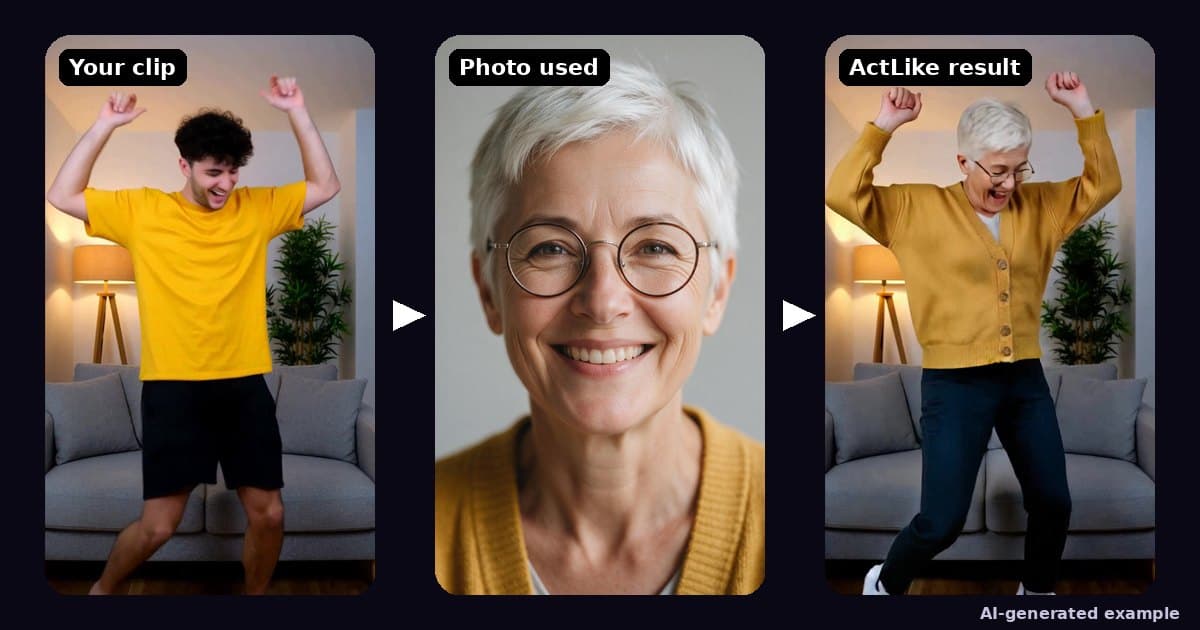
Try it while you read
ActLike AI is on iPhone and Android. US App Store packs start at $1.99; Google Play prices vary. No subscription.


How do you put your face in a video?
To put your face in a video with ActLike AI, choose a clip of one person (up to 20 seconds) that you are allowed to reuse, add one clear, front-facing photo of the face you want to appear, pick 480p or 720p and generate with paid credits. The app replaces the whole person in the clip, not just the face. A 5-second clip costs 5 credits at 480p, or 11 at 720p with Scene Match.
On this page
What happens when you put your face in a video
People often picture a face-only filter pasted over someone else’s head. ActLike AI does something different: it replaces the person in the clip. The clip supplies the movement, timing, framing and background; your photo supplies the new appearance, including hair and clothing. In the example above, a young man dances in a living room and the result shows the woman from one photo doing the same dance.
That is why two inputs matter more than any setting: the photo of the face you want, and the shot you put it into. The steps below are about choosing those well. Installation and every screen are covered in the iPhone walkthrough and the Android walkthrough.
Step 1: choose the face photo
- 1Use a photo of yourself, or of someone who agreedYour own face is the simplest case. For anyone else, get their permission first; the acceptable use policy rules out using people’s likenesses without consent.
- 2One face, facing the cameraA bright, sharp, front-facing photo with the whole face visible works best. Skip sunglasses, heavy filters, group shots and photos where hair or a hand covers the face. The app checks the photo and scores how well it will match before you spend anything.
- 3Remember that more than the face comes acrossHair, clothing and build follow the photo, so a photo cropped to the shoulders in a yellow cardigan can bring a yellow cardigan into the video. Pick a photo whose styling you are happy to see on screen.
Step 2: choose a clip you may reuse
The easiest clip is one you filmed yourself or a friend filmed with permission. An existing video from elsewhere is only suitable if you have the right to edit it and the people in it have agreed. Do not use clips of celebrities, film scenes or anything you do not have the rights to; the app’s licence covers personal or internal creative use only, so read the terms before sharing a result.
- One person only. The clip needs a single main performer. Crowds and two-person shots are likely to confuse the replacement.
- Visible from the first frame. Choose a shot where the body and face are in view and not hidden behind objects.
- Steady and well lit. Handheld is fine; heavy blur, strobing lights and very dark rooms are not.
- Short. The limit is 20 seconds. Start with five: it keeps the first attempt cheap and is enough to judge the result.
Step 3: generate and check the result
- 1Add the clip and the photoPick the clip, then the photo. If the photo score is low, swap in a brighter, more frontal picture before generating.
- 2Pick quality and Scene MatchCredit Saver 480p is the cheap draft; Best Quality 720p is the version to share. Scene Match fits the new person to the lighting of the scene for one extra credit. The high-quality guide explains what each setting changes.
- 3Generate and watch it in motionRenders finish in the background. Check the jaw and hairline during turns, the hands, and the clothing, not just a still frame. Save the result and review the saved video before you share it.
| Clip and settings | Credits |
|---|---|
| 5 seconds, 480p | 5 |
| 5 seconds, 720p + Scene Match (the example above) | 11 |
| 10 seconds, 480p | 10 |
| 10 seconds, 720p + Scene Match | 21 |
Credit packs are one-time purchases; generation is paid and there is no subscription. See the pricing page. A failed generation returns its credits automatically.
Which app to use to put my face in a video
ActLike AI is a $0 download on the App Store (iOS 17 or later) and is also available on Google Play; making a video uses purchased credits. It is built for replacing the person in a short clip from a photo or a text description, which is the task this guide describes. If you would rather not use a real face at all, describe an original character instead, as shown in the AI character video guide. To compare approaches, see the alternatives page.
Questions about this guide
Can I put my face in any video I find online?
Only if you have the right to edit that video and everyone in it has agreed. Use a clip you filmed or were given permission to reuse, and avoid celebrities, film scenes and other people’s content. The ActLike AI licence covers personal or internal creative use only.
Does the app only swap the face?
No. It replaces the whole person in the clip. Face, hair, clothing and build follow your photo, while the movement, timing and background come from the clip.
How much does it cost to put my face in a 10-second video?
With a photo, a 10-second video uses 10 credits at 480p or 21 credits at 720p with Scene Match. Credit packs are one-time purchases and there is no subscription.
More guides
Ready to make one yourself?
Reading gets you halfway. Download ActLike AI, follow the steps with your own clip, and you will have a finished video in a few minutes.
iPhone requires iOS 17.0 or later. Android version on Google Play.


Written by Ege Alp · Developer, ActLike AI · Updated 28 October 2026