
AI Video Tools
Choose a starting point for your video. Upload footage you want to edit, use a prepared scene from the trend library, or read the guide to see how to choose the photo and check the credit cost before you make your first video.
Choose how to start
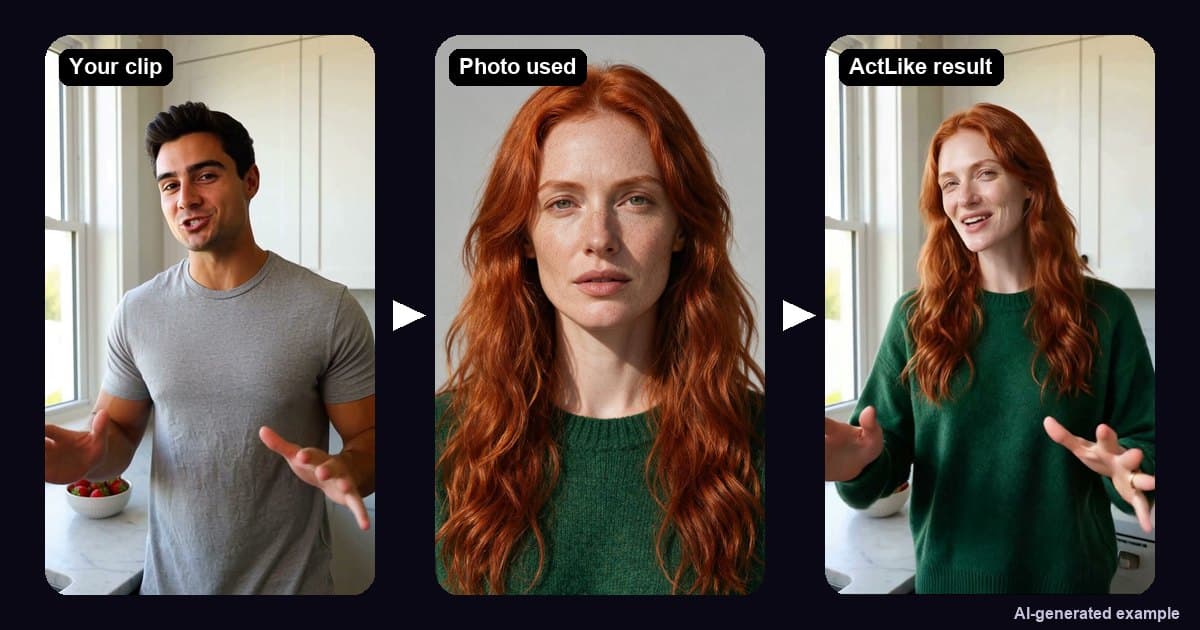
Face Swap in your own clip
If you already have a scene, upload the clip and add a photo of the person you want in it. Use this workflow for footage you filmed or have permission to edit, like a greeting, a dance, or a short sketch.
Open the web studio
Customize a video trend
Start from a prepared scene if you only have a photo. Gentleman Move, for example, shows the person from head to toe. Each trend page shows the clip and tells you what kind of photo to use.
Browse video trendsFollow the Face Swap guide
Walk through a real example from the original clip to the result. The guide covers reference photos, picking the person to replace, and what to check when the subject turns or moves quickly.
Read the guideChoose footage and photos
Start with the clip whose action you want to keep. Play it once and mark the moment you plan to share. Look for shots where the person leaves the frame, is covered by something, or changes angle. If you have several shots to edit, you can try a short one first and check that the reference photo works for it before spending credits on the rest.
Match the photo to the shot
A clear portrait works well as a reference for a close-up. If the source shows the whole person, choose a photo that includes the outfit and shoes you want in the result. Keep the face visible and use even lighting. Pause the clip at the shot that matters most and check that the details you care about are visible in the photo.
Watch a recorded face swapEstimate the cost of your first video
A ten-second photo-based clip uses 10 credits at 480p or 20 credits at 720p. Use 480p if you mainly want to check the match. Once you like the result, choose the resolution that makes sense for where you will publish it. The studio shows the credit total before each creation.
Open the credit calculatorQuestions about the video tools
What changes when I use Face Swap?
The reference photo supplies the appearance of the replacement person, including their face, hair, and visible outfit. The movement and camera framing follow the source clip, and the original audio carries over. If the look depends on a particular detail, pick a photo that shows it clearly and check it in the result.
How long can the source clip be?
The web studio accepts source clips up to 120 seconds. When 1080p is available, the clip can be up to 30 seconds at that resolution. Trim the video to the section you plan to edit so the studio estimates credits for the footage you want to keep.
Can I replace two people in the same video?
Yes, in a clip you upload. Add one photo for each person and identify both targets with visible details, such as “the person on the right wearing a blue hoodie.” Adding a second person does not change the credit rate. In a ready-made trend, the role has already been selected.
How do I find the price before I make a video?
After you choose a source clip and resolution, the studio displays the credit cost for that video. Credits are sold in one-time packs. If a render fails without delivering a video, the credits charged for that attempt automatically return to the balance.
Can I use the web studio on a phone?
Open the studio in a browser on a phone or computer. To make a video and find it again later, sign in with Google or email. If you use the iPhone app with the same account, the app and web studio use the same credit balance.
Where do I find the finished video?
Open the completed job or go to My videos in your account. Compare it with the original and download the MP4 if you want to keep a copy. Play through tricky moments, like a fast turn, before posting. Use material you have permission to edit and label the posted video as AI-generated.




 Listed on Dang.ai